I have to say after using the Windows (Microsoft) world for a long while, I was a bit worried if I would be able to get into the Linux world. Even thought when I started my computer life, it was in the world of DOS (Microsoft DOS), which was a black screen and text interface which we used to do everything even design computer games (without graphic, like the famous SNAKE which runs after APPLES to eat them and grow longer).
Since those historic days of using a text based operating system, we have advanced to using a mouse and a keyboard in a graphic world, moving, copy pasting and dragging windows and applications, text and other manipulations, which are now familiar to us as if we haven’t known anything else.
With Linux, well it is almost the same, the Linux has been developed on the base of the Unix systems which where 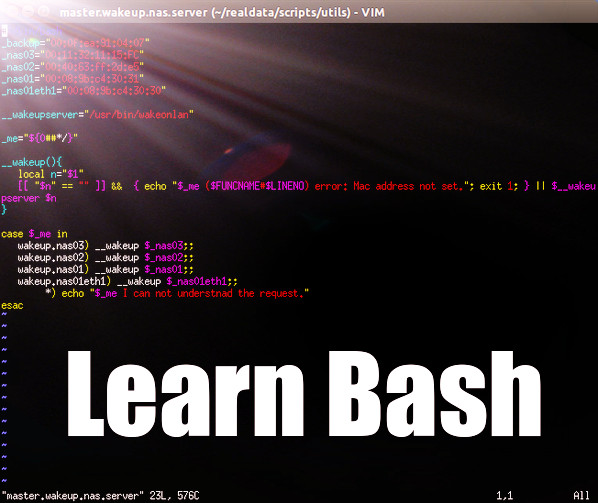 text based operating systems (even AS/400 started as a Text based operating system) and now we also have the Linux desktop operating systems, which are getting easier and simpler to use, as it resembles our familiar Windows operating system environments.
Thought Linux has a graphic interface, it’s base functions are still being performed in it’s core of the text like functions using the Linux commands. The Linux commands are the same in a way as the DOS operating system was for Microsoft. The command language contain many functions and commands that let you operate and install anything you need from the operating system.
In the desktop editions (Linux has a Server and Desktop editions) if you install an application using the command line (the Linux terminal) you will see the application showing up on the Desktop interface as a regular application which you can double click and run exactly in the same way that you would use if you where using the Microsoft windows operating systems.
After understanding in theory how strong the command line is in Linux, I guess we should give you some Idea of how and what type of commands can be used in Linux.
I got used to the UBUNTU operating system, which is Debian based. The Ubuntu system uses a basic tool called APT-GET, which is being used, to update the system, upgrade applications, and install applications from the web. The apt-get uses a list of websites which contain a large known applications which can be installed automatically by APT-GET, those list of websites are sitting in the /etc/……./source.list.
Apt-get seeks the application you want to install, by going through those web sites which are in the source.list, and  can find most of the known and mostly used applications and install them automatically.
The catch with Linux, is that mostly you will have to configure the system you have installed, which usually means in the text (terminal) world, editing configuration files. The beauty of things is that you most likely find the instructions and examples of how to do the configuration editing on the Internet and all you will have to do, is go through the instructions and step by step configure your application.
Let see some common Linux command examples: (Remember Linux is Case Sensitive):
- Comment: With any command in Linux, you can use “–help” to learn all of the command’s possibilities, and if you want the full review you can do “man ‘command name’” and get the full manual on the command with all of the explanations needed to understand each of the command functions.
top – This command shows the CPU, MEMORY and tasks which are running. It can be compared to the TASK MANAGER in windows.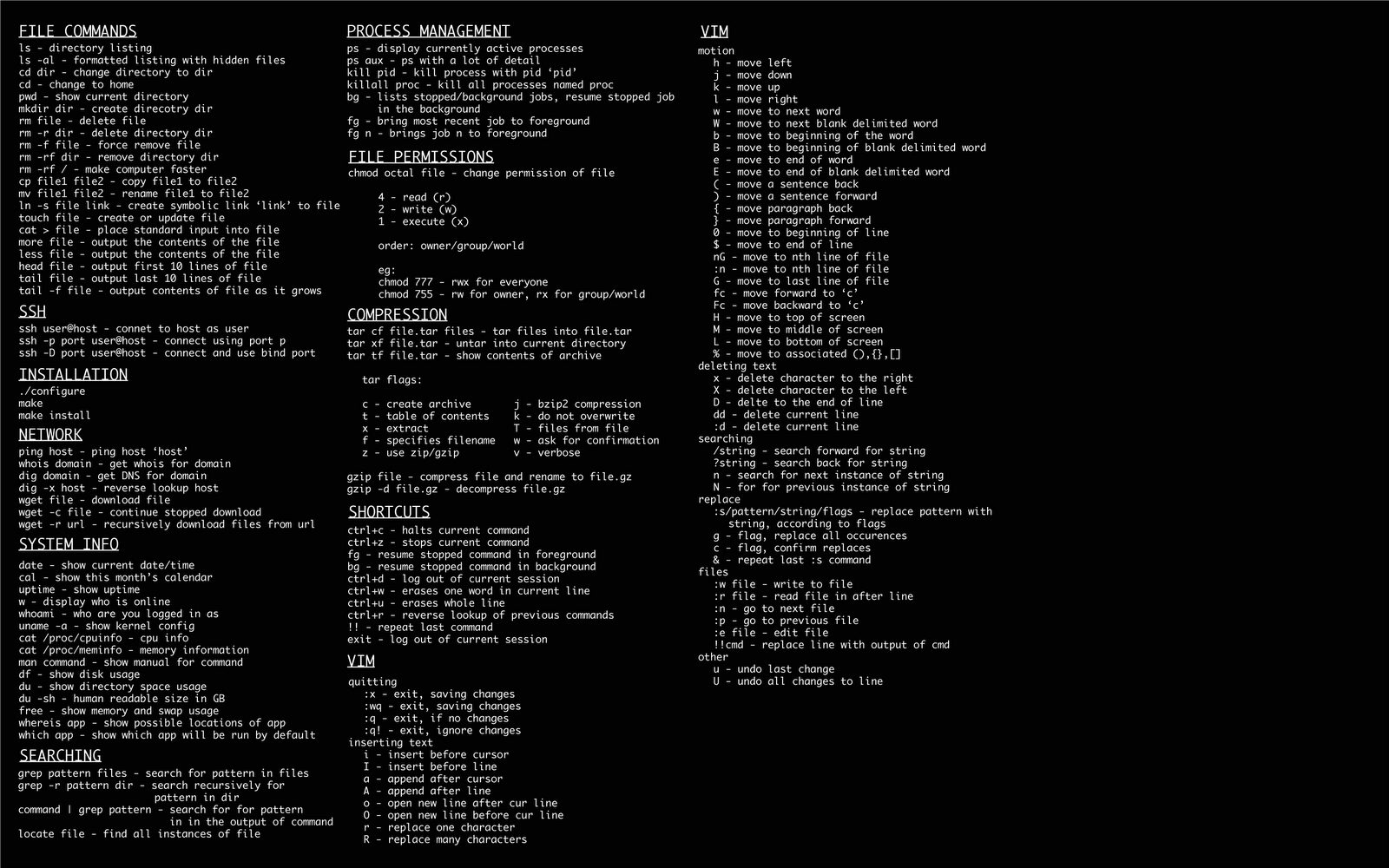
ls – This command shows the list of files and folders (called directories in linux) in the directory you are in. Which displays the files and folders you might want to use, edit or go through. (If your coming from windows, this would be like the DIR command in DOS).
cp – This command copies files or folders form one place to another within the same computer. To copy a whole folder you need to use the cp command tags (cp -r “directory name”).
scp – This command is like the “cp” command only it will enable you to copy the folders and files across different computers and network. With this command you have to state the user/password of the computer you are copying the date to, before you can copy the information to the other computer (It doesn’t have to be on your own network, as long as you know the IP (which is accessible) on the computer which is out of your network and of course have the authority to be able to ssh copy the information to it). The example command will be “scp -r folder-name root@192.168.1.5/tmp” This will copy the folder that you will mention from the directory you are in on your computer to another computer that you have stated it’s IP, using the user “root” into the folder “tmp” on that other computer (you will be prompt with a password request) and you need to state the correct password of the root user on that computer, and the folder will be copied to the “tmp” folder on that computer.
ps – This is a snapshot report of a process, it shows and checks if a process is running, what is the process ID and more. (An example command will be “ps ax | grep command-name”).
nano – This is one of my best editors, for editing configuration files within Linux, which if you will use Linux much, you will have to learn to edit and change configuration files as part of setting the programs you are installing. I guess the reason I like this editor, is due to the fact I was coming to computers from Windows, and I just like to move freely within a text file using the keys and functions. Just to give you an Idea how simple and easy this editor is, you can of course move freely within the editor using the keys, use CTRL+W to search a word in the edited file, use CTRL+K to cut a line or sentences and when you cut the amount of data you needed, you just go to place you want to place it and press CTRL+U, and the date will be copied there. To end the editing and save or not save the changes you press CTRL+X and just choose yes (to save) or no (to ignore the changes).
vi – This is one of the editors which most Linux users use, but I find it more limiting, as you need to do certain functions to be able to edit, you need to remember to press ESC to get back to the functions options, and to exit you press :q! (to exit without saving) Or :qw! (To exit saving changes). Anyway you can choose which would be better for you.
df – This command will show you the sizes of the computer hard disks. You will be able to see the sizes in MB/GB sizes if you do “df -lh”. Just like watching the sizes of the hard-disks in windows when you double click “my computer” and look at the hard disk sizes, and their capacities.
There are many other commands in Linux, but these will be able to let you start. These simple commands are the basics of what you need to do with your Linux, at least for the basic simple things, Enjoy.


 has two different operating system environment, one a server operating system, that usually doesn’t have a GUI desktop (X-Windows), and the Desktop operating system edition, which does come with the GUI (X-windows) built-in, and is similar to what most people know as the Microsoft operating systems (Windows XP, 7, Vista etc….).
 ndows, this player works and fits all of the Linux distribution desktops. Even though it is being used even on other operating system types (like windows), it has special features that works only on a Linux OS.
 and as such, programmers have developed different firewall applications for it. Some are built into the operating system distribution package, Ubuntu, Suse, Red-Hat etc…
 nd understand and you can define different of the firewall elements like the zones, hosts, networks etc… You also get to manage and decide which of the services to enable. The simplicity is that you can do all that by editing an XML file or by using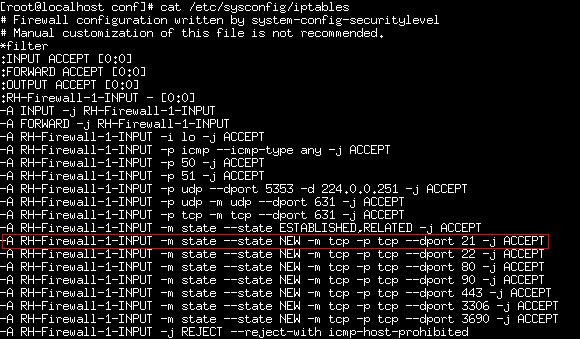
 that enables a simple description of what you need the firewall to do, and the system enables it, without a deep understanding of what exactly goes under the hood of it all.
 Linux operating system package. You can gain almost any type of services you need, by either using the built in services on the operating system after the installation (which means they are coming installed within the OS) or by doing a simple update/download and install of new services which are not built in, It is as simple as that.


 as an operating system that is becoming more and more common, is that it is a basic computer operating system, that has a Kernel (Basic common features that let it act as a computer) and expansions. The core of a Linux operating system is very small and doesn’t require much of the computer resources. That is why Linux is one of the common operating systems used for embedded functions.
 so anyone can use as he chooses. We can make changes to the kernel, re-compile and create a new Linux kernel of our own, and use it for our own purpose (of course that last sentence is for those who know how to make changes to the Linux kernel) otherwise you might damage the OS for good.
 ild a tiny embedded system entirely from scratch, in 40 minutes.
 The Dedication part means that the server is solely yours, and the definitions you require for it, like bandwidth, security, resources and other configurations that you have requested, will be dedicated to you, so you will always have them available.

 You will need to define, the bandwidth you need, the hard-disk capacity allocation requirements, the memory (RAM) you require and CPU needs (2 Processors (Duo) or 4 Processors (Quad)) and the kind of dedication server you require – if it’s a Dell server or HP or whatever the hosting offers and you find suitable.
 under the open-licensed

 we find such an option, what do we need to do? Well there is an answer to these questions and it is within the Linux operating system. Linux is a term that describes to a Unix-Like computer operating system, which is based on a Linux kernel. The base of this operating system is to enable free and
  automatically, which means that you can use this command to install the programs you need. It has a repository of known programs, which it knows to discover if you have it installed or not and in case you haven’t installed them, it offers you to download them from the web, and install them automatically. This tool is a major feature that makes the installations really easy.
 configuration files (*.conf). That issue requires some inquiries being done on the web (internet), to learn how to configure the tool/program your installing to fit your requirement and your environment. But, even though I specified that last problematic issue, it is doable, and there is much information on every tool/program on the internet, including others that have installed and configured their programs and of course forums, where people asked questions to their problems while installing, which might resemble the problems you encounter.
 edition, and you will get spared from GUI installation, if you prefer).


 Linux firewall application. Linux has many benefits about installing applications by yourself, of course you need to learn some Linux to do so, but that is one of the reasons why it might be a good idea to get to know Linux. You can install almost anything that you might need, and it’s free.
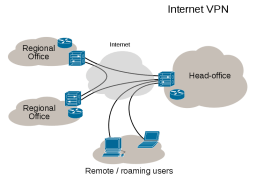
 a couple of utilities and daemons, command line control, and database storage of automatic updates. This anti-virus seems to be a very common engine for anti-virus scanning on Linux.
 schedule mechanism built in the Linux operating system) and by combining the two, create a timely backup solution. There are some solution that suit Linux desktop operating system since the Desktop type of Linux has a graphic interface which can include graphical software tools, but here I will concentrate on the more core like applications which are running in the text mode, which suit both the Linux desktop and the Linux server types of operating systems.

 that about Linux that I would like to calm down. Now that I had the chance of getting to know Linux pretty well, I can honestly say that there is much potential for the open-source operating systems. You can basically get all of the things you were used to getting from the Windows operating system, and much more.