
tips of computer system maintenance – tip to maintain your computer – tips for maintaining computers
Computer maintenance are based on some basic features that needs to be kept. Computers are based on hardware and software. The hardware equipment build the computer itself and enable its capabilities to perform computer tasks and the software enable us to run the applications we need onto those hardware equipment.
Since the software basics that needs to be kept are starting with the operating system (either Microsoft Windows, Linux, Macintosh etc…), an Anti-Virus software and a solid firewall that will keep out system safe from harm. Also, since we work with the computer, on a daily basis, some garbage is being piled up, like when you delete files, move files, cut and paste files etc… the way the data is stored on the system gets many gaps that needs to be maintained in order for us not to lose the performance we had when we first started. Like anything else in life, everything needs some maintenance, like cars, our houses (clean dust, wash floors etc…), like if we won’t wash the dishes in our sink, we won’t be able to use the sink anymore eventually, so it needs to be cleaned to be re-used 🙂
I will specify some tips for keep your computer maintained, so let’s get to it.
Scheduled maintenance tips on Microsoft Windows OS: (Windows 7 Example)
- Click Start
- Click All Programs
- Click Accessories
- Click System Tools
- Click Disk Cleanup (If there are more hard drives than one, you might be prompted to specify which drive you want to clean.
Disk cleanup does some calculations and estimations of the files on the hard-disk and will pop-up a window that will enable you to choose which type of files to clean.
* Then press the “CLEAN UP SYSTEM FILES“. (On Windows XP, it works almost in the same way).
The Disk Defragmenter – Windows 7:
The disk defragmenter is fixing those gaps that are being caused due to moves and re-installation of applications, the programs are not sitting on the same continuous spaces, so the derangement binds those program together so they will sit in the same storage space.
- Click Start
- Click All Programs
- Click Accessories
- Click System Tools
- Click Disk Defragmenter
* Choose the drive you want to defragment and then let it run till it finishes, end the system will run quicker.
* You should let it analyze first – to know how much in percentage needs to be defragmented. If the percentage is high, then it is worthwhile to let it run.
Cleaning the computer from DUST: (Once a Month or at least every yearly quarter)
Every household has dust and our computers suffer from dust as well. The computer has ventilation fans that keep it cool, and shoves those dust particles into the computer.
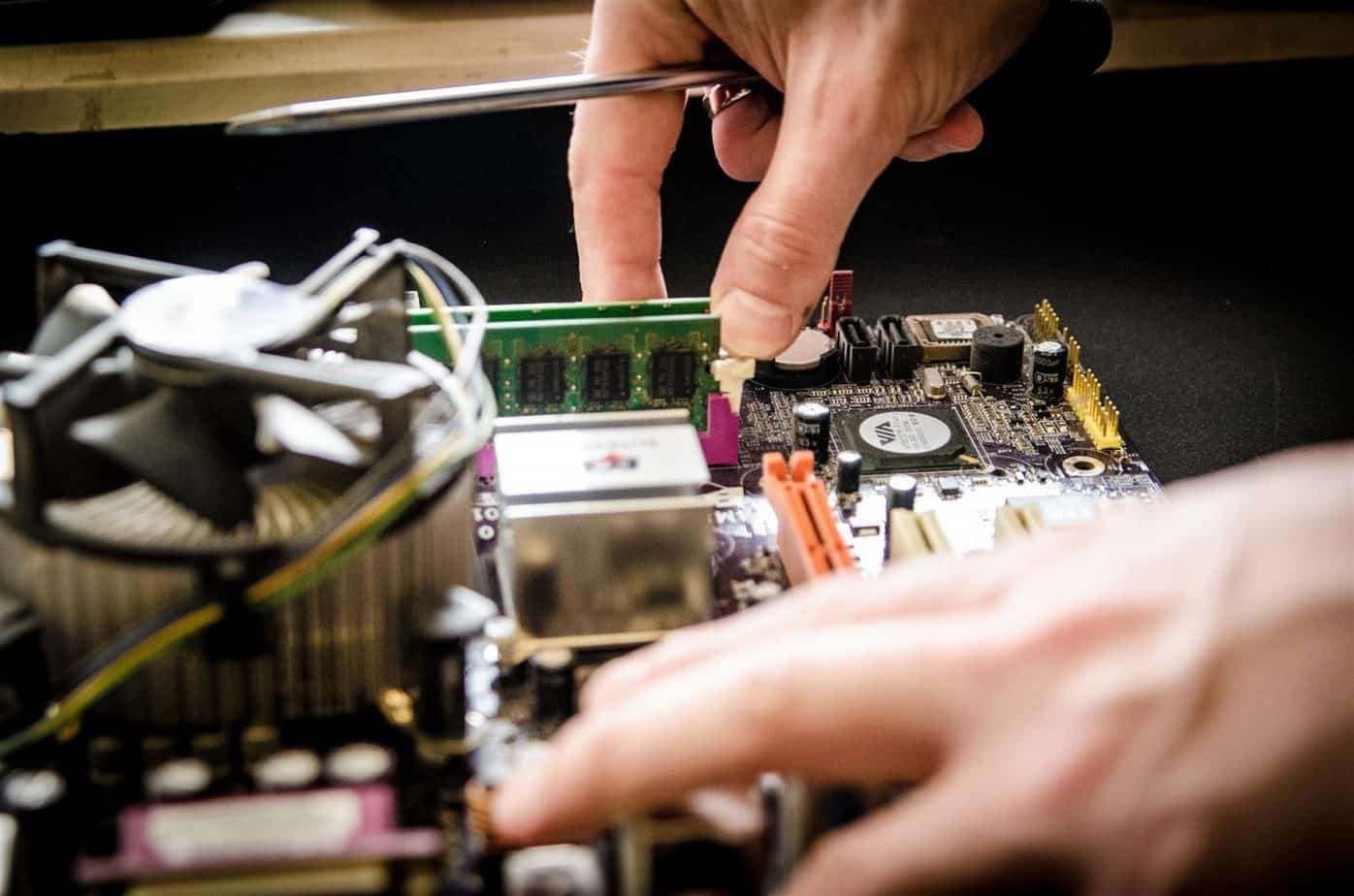
Eventually the dust will cover the motherboard electronics, and the fans in such manner that might either harm the operation of the motherboard electronic units, and the speed and smoothness of the fans operation, which might slow them down, and effect their efficiency in cooling our computer systems.
So clean dust from your computer – shut the computer down – open the side door and use a small brush to brush those dust particles off the electronics, the motherboard, the cables and connections and from the fans… (better start from the fans). When the dust is settle on the bottom, you can either vacuum it or just brush it out of your computer box.
Detect and repair hard-disk errors:
You can run the error checking program, which will scan and check the hard-disks, to see if it needs repair, if it does find a reason to run the repair procedure, let it run and fix your hard disk.
- Click Start

- Click My computer
- Right click the hard-disks – and choose Properties
- Click the Tools tab
- Click the Check now (In windows 7 it is called Error-Checking).
Basically keep an eye for your computer performance, even though with the computers today being so quick and efficient, it is harder to see the changes in performance, but if the system loads slower then you where used to, or opening windows, office applications, browsers etc… takes time (well more then you where used to) then just do these procedures, it should get better.



 pretty clear, the main question to be asked is “Do you need the computer to be mobile? Do you need to move it around with you?” If the answer is yes, then buy a Laptop, if not you can buy a Desktop computer.


 Make sure you have enough connection sockets, on your computer’s motherboard and the computer cover (that connects to the motherboard) like the commonly used USB2 sockets, FireWire, HDMI, DVI, etc…
 time, especially with the


 computer we were using was working so slow, it could only irritate us to the scale where we just couldn’t work properly. Computers tend to get slow for different reasons. Some are due to the fatigue of the hardware units, they just get old or full of dust, and they just can’t perform anymore with either the resources the operating system requires from it, or just it fails to work properly. Some other reasons might be the amount of running processes/programs at the same time. The operating system might not be able to contain the amount of running processes at the same time, which causes the slowness.
 applications will not delete those temp files, and eventually the amount of temp files on those temp directories will affect the computer, and cause it to work slower than it used to.
 – A better more updated CPU will increase performance greatly, there are


 damaged.3.2 If your hard-disk has enough space, you can load a new operating system, and when installing choose manual-installation, so you could choose which hard-disk will contain the operating system, and of course if there is space, you can create a separate space (new
  the company’s shared
 basic understanding of what and how we can use the network.



 processing and boost performance.


 those tips which do not fall into a certain category, like general knowledge, something that is useful to know about, which will ease your use with computers, or just improve your computer experience and make it easier.
 running windows XP virtually. What this means is on your windows 7 you can install a virtual server (do not worry, you don’t really need to install it in the way your accustomed to, the application is already built-in as I mentioned earlier) that will enable you to run windows XP while running windows 7 (it will be more accurate to say that we will be running windows XP within windows 7). This means that if you have an application that for some reason will not run correctly on Windows 7, you will be able to install it on the Windows XP which runs within windows 7, as if you where running a Windows XP operating system, so you will be able to use your old applications. Just to ease your mind further, Windows 7 is a very flexible operating system, and will probably be running your Windows XP application easily. There are instruction on how to use the virtual XP mode and you can easily find it on the internet.
 anslate either a word or a whole paragraph, with simple clicks of a keyboard key on your keyboard. Those of you who were used to use the “
 your car, your house, etc… everything is breaking down in time and we need to maintain them in order to keep them in shape.
